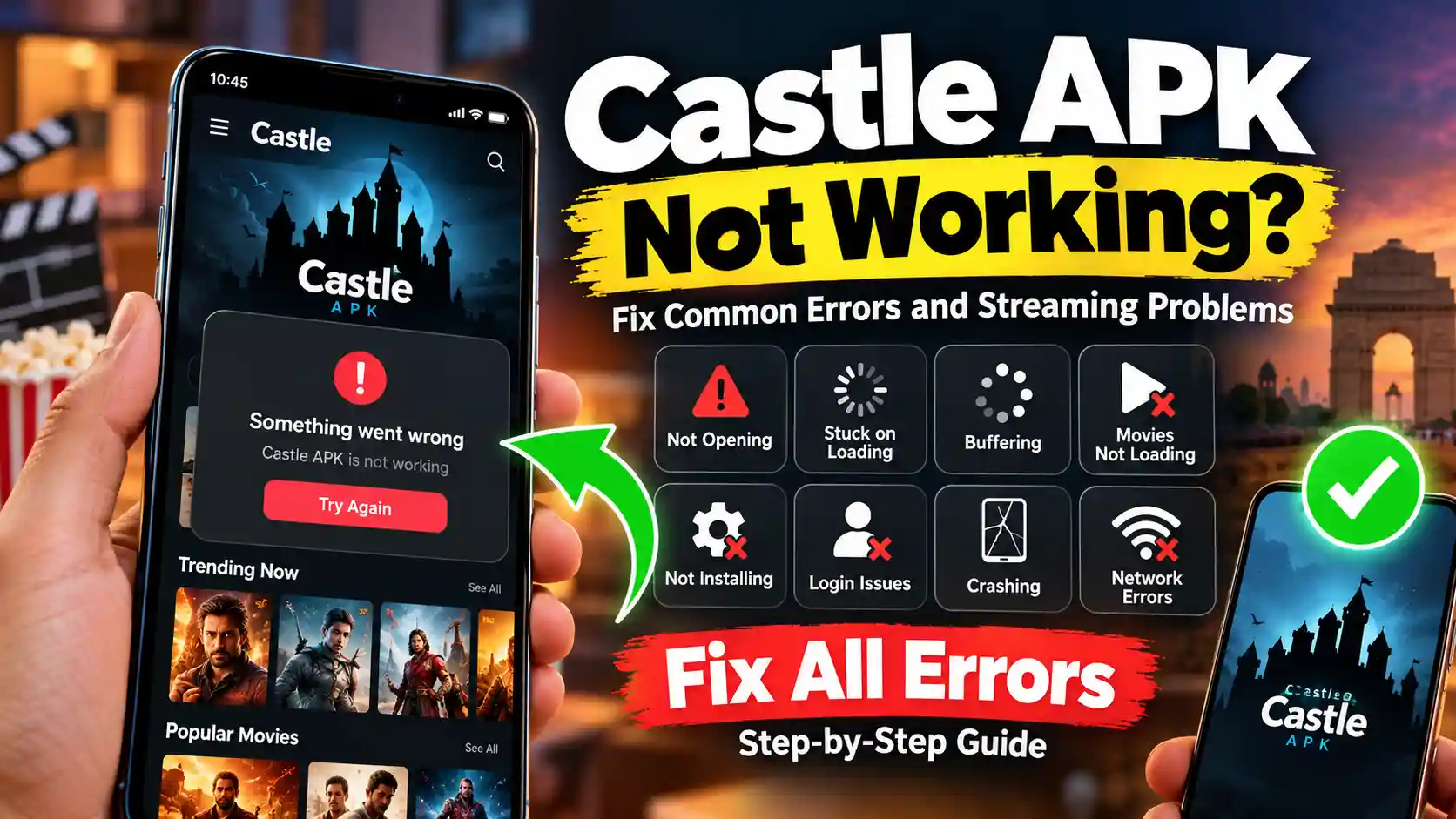
Castle APK Not Working? Fix Common Errors and Streaming Problems
Castle APK can stop working for several reasons. The problem may involve the app, your Android device, internet connection, or the streaming service.
Start by identifying the exact symptom. Is Castle crashing, buffering, stuck on loading, or refusing to install? The right fix depends on the problem.
Current Castle pages also show different version numbers. That makes it risky to copy a version number from another website. Check your verified Castle download source for the current release before updating.
Why Is Castle APK Not Working?
An outdated app is only one possible cause. Android apps can also fail because of temporary files, low storage, compatibility issues, network problems, or damaged installation files.
Here is a quick way to identify the likely cause:
| Problem | Possible cause | First step |
|---|---|---|
| Castle will not open | Cache or compatibility | Restart and update |
| App keeps crashing | Corrupt data or low storage | Clear cache |
| Videos keep buffering | Network or stream issue | Test another connection |
| Movies will not load | Playback or service issue | Try another title |
| APK will not install | File or package conflict | Check storage and old versions |
| Black screen | Playback problem | Try another stream or restart |
| Login fails | Account or network issue | Check connection and details |
Google’s Android guidance also recommends restarting, checking updates, force stopping an app, clearing cache or data, and reinstalling when an Android app does not work properly.
What Should I Do if Castle APK Is Not Working?
Try these fixes in order. Test Castle after each step.
1. Check for a New Castle APK Version
Older builds can develop compatibility or playback problems after changes to the app or Android system. Do not rely on an old version number shown on a random APK page. Check your trusted Castle source first.
2. Test Your Internet Connection
Open another website or streaming service.
Then switch between Wi Fi and mobile data.
If Castle works on one connection but not another, your network may be the problem. This matters when using mobile data during a commute or when a home Wi Fi connection becomes unstable.
3. Force Stop Castle
Open your Android settings.
Go to Apps and select Castle.
Choose Force Stop, then open the app again.
The exact menu can differ between Samsung, Xiaomi, OnePlus, Vivo, Oppo, and other Android phones.
4. Clear the Castle App Cache
Temporary files can sometimes cause loading or performance problems.
Open:
Settings → Apps → Castle → Storage → Clear Cache
Android confirms that clearing cached data removes temporary files.
Avoid clearing app data unless necessary. That can remove stored app information.
5. Check Your Storage
Low storage can affect app installation and device performance.
Delete large downloads, unused apps, or old videos if your phone is nearly full.
Google notes that low storage can contribute to Android device problems.
6. Restart Your Android Device
A restart can clear temporary system problems.
It also stops background processes that may interfere with app performance.
Google recommends restarting as an early troubleshooting step for apps that crash or fail to open.
7. Close Heavy Background Apps
If your phone has limited free memory, close demanding apps before opening Castle.
This can help older Android phones handle playback more smoothly.
8. Reinstall Castle Only When Needed
Reinstallation makes sense when the existing installation appears damaged.
Remove the old installation first.
Then install a fresh, compatible APK from your verified source.
Do not keep reinstalling if every other function works but Castle’s service is unavailable.
See More About: Castle APK Download Old Versions for Android Free (2026)
Why Are Castle Movies Not Loading or Videos Buffering?
This problem needs a little diagnosis.
First, check whether one title fails or every title fails.
If only one movie or show refuses to play, the issue may relate to that particular stream.
Try another title.
If several titles fail, check your connection and app version.
Castle APK Keeps Buffering
Start by testing your network.
Switch from Wi Fi to mobile data, or the other way around.
You can also reduce video quality if the app provides that option.
Close large downloads and other streaming apps.
A fast connection can still suffer from instability or congestion.
Do not assume a VPN will fix buffering. A VPN can sometimes improve routing, but it can also add another network layer.
Castle APK Is Stuck on the Loading Screen
Try this order:
- Force stop Castle.
- Check your connection.
- Clear the app cache.
- Restart your phone.
- Check for an available update.
- Try another title.
If the same issue appears across different networks and devices, the problem may be service side.
Why Does Castle APK Keep Crashing?
Repeated crashes usually need more than one quick fix.
Start by updating Castle from your verified source.
Then force stop the app and clear its cache.
Check your available storage too.
If your Android system has an available update, install it after checking compatibility.
If Castle still crashes, reinstall the app.
Google recommends checking app updates, restarting the device, force stopping troublesome apps, checking storage, and reinstalling when necessary.
Do not immediately blame your phone. If other apps work normally, the issue may be limited to Castle.
Why Is Castle APK Not Installing?
An APK can fail to install for several reasons.
First, check that your device has enough storage.
Next, remove an older Castle installation if one exists.
A conflicting package can prevent a new build from installing.
Also check that the downloaded file completed correctly.
If the file is incomplete or damaged, download it again from your verified source.
Android may also restrict installation from sources outside Google Play. Android’s current security guidance warns that apps from unknown sources can expose devices and personal information to risk. If you choose to install an APK outside Google Play, verify the source before opening the file.
Why Is Castle APK Login Not Working?
Start with your internet connection.
Then check your login details and make sure the app is current.
Force stopping Castle can refresh a stuck session.
Clearing the cache may also help with temporary app data.
If login fails while other parts of the app work, the problem may relate to your account or the service.
Avoid creating repeated login attempts without knowing the cause.
Is Castle APK Down or Is the Problem on My Device?
This is an important distinction.
If Castle fails on your phone but other apps work, start with Castle and your device.
If Castle works on mobile data but fails on Wi Fi, investigate the network.
If several devices show the same problem, the issue may be wider.
You can also test different titles.
If only one movie fails, do not assume the entire app is down.
This simple process can save you from unnecessary cache clearing or reinstalling.
How Can I Prevent Castle APK Problems?
Keep your Android system and Castle installation current.
Maintain enough free storage.
Use a stable internet connection.
Avoid keeping several conflicting versions installed.
Clear temporary cache when problems appear.
Most importantly, use a trusted download source.
Android recommends verified app sources because apps from unknown sources can create security and privacy risks.
Why Is the Castle App Not Working?
Castle may not work because of an outdated build, damaged cache, network problems, low storage, compatibility issues, or a temporary service problem.
Identify the symptom first.
Then use the matching fix instead of reinstalling the app immediately.
Why Is My Castle Not Working?
Check your connection and app version first.
Then force stop Castle and clear its cache.
Restart the device and test the app again.
If other apps work normally but Castle does not, the issue may be specific to the app or its service.
What Should I Do if an APK Is Not Working?
Check the APK file, Android compatibility, storage, and existing installation.
If the app installs but crashes, clear its cache and restart the device.
If the APK will not install, remove conflicting versions and check the file source.
Do not install a file simply because another website calls it the latest version.
Why Isn’t My Pikashow App Working?
Pikashow is a separate application, so its problems may have different causes.
If you are troubleshooting Castle, follow Castle specific steps.
Do not assume a solution for one streaming app will work for another.
What Is the Latest Castle HD APK Version?
Current Castle websites publish conflicting version information.
One current Castle page lists v2.1.2, while another troubleshooting page still lists v2.1.1.
For that reason, verify the current version on your trusted Castle source before publishing or installing an update.
A current version number should always include a verification date.
Which Country Made the Castle App?
Public Castle pages do not provide enough reliable information to establish the developer’s legal country without qualification.
Some current Castle pages position the app around Indian users and Indian regional entertainment.
That does not, by itself, prove the developer’s country of incorporation.
Where Can I Download Castle APK Safely?
Use your verified Castle source rather than an unknown APK mirror.
Before installing, check the domain, app name, version, file information, and permissions.
Google warns that apps downloaded from unknown sources can put devices and personal information at risk.
If Android displays a security warning, do not ignore it without understanding why it appeared.
What Features Are Included in the Latest Castle APK Update?
Current Castle information mentions changes involving language preferences, regional search, subtitles, audio matching, and search improvements.
However, feature lists can change between releases.
Check the release information for the exact version you plan to install.
Final Check Before Reinstalling Castle APK
Do not reinstall Castle as your first response to every problem.
First check the symptom.
Then test the connection, update the app, clear temporary cache, check storage, and restart your device.
If the problem continues, reinstall from a verified source.
If Castle fails across different devices and networks, investigate whether the issue is service side.
That approach is faster, safer, and more useful than trying random fixes.